Android app by nas4.tech

Secure Recorder

Record, organise, edit, share and protect audio recordings on Android.

Start a recording with a tap, a spoken phrase or four presses of the power button. Keep the last hours in AUTO mode, tag and trim what matters, share it, and send copies to a cloud account you control.

Get it on Google Play See what it can and cannot do

Free download · contains ads · Android 8.0+ · version 1.2.1 on Google Play (checked 2026-10-09)

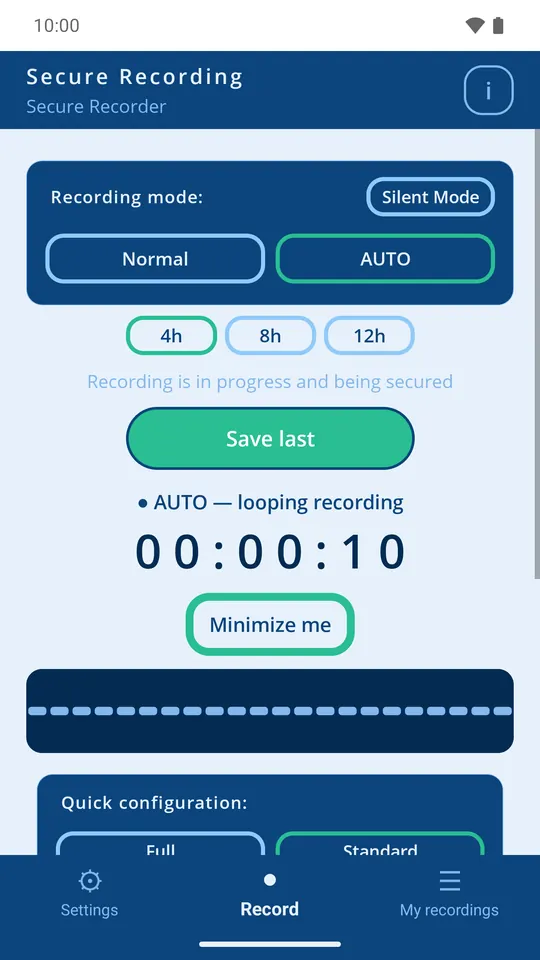
Secure Recorder AUTO mode recording with a rolling buffer and the Save last button

What people use it for

  • Voice notes

    Record an idea in seconds, tag it as Idea or Work and find it later with a tag filter. Hands-free triggers help when the screen is off.

  • Interviews and meetings

    Pause and resume without starting a new file, keep the recording running in the background and trim the start and end afterwards. A USB or wired microphone can replace the built-in one.

  • Lectures

    Long sessions in AAC or Opus stay compact. Transcribe a fragment on the phone with Whisper after downloading a model, and share the text or audio with your notes app.

  • Working with audio files

    Import audio already on your phone, trim it into a new copy, create a denoised copy, export to WAV or save to Downloads.

Before you rely on USB or the cloud

USB microphones: the phone must support USB audio input (many USB-C phones do) and Android must list the microphone as an input. It then appears under Settings → External microphones. Test a short recording before an important session.

Cloud: you need your own Google Drive, OneDrive, Dropbox or HTTPS WebDAV account and an internet connection. Live copies and encryption are off until you switch them on.

Key facts

PlatformAndroid 8.0+ (API 26+)
Version on Google Play1.2.1 (2026-10-07)
Audio sourcesBuilt-in microphone; system audio (Android 10+); USB, wired and Bluetooth microphones when Android exposes them
Recording formatsAAC (.m4a), Opus (.ogg), WAV
Cloud destinationsGoogle Drive, OneDrive, Dropbox, WebDAV (HTTPS)
ProtectionPIN lock of the interface; optional AES-256-GCM encryption of cloud copies
Price and adsFree to download from Google Play. The app shows Google AdMob banner ads. Google Play lists no in-app purchases and the app has no paid tier. Storage in your own cloud account is billed by that provider under its own terms.
AccountNo Secure Recorder account is required. Cloud copies use your own Google Drive, OneDrive, Dropbox or WebDAV account.
App languages18 (pl, en, de, fr, es, it, cs, sk, ru, uk, nl, sv, pt, tr, ko, ja, zh, ar)
AudienceFor users aged 16 and over. Record only with the permissions and consent required where you live.
Information checked

Capabilities and limits

Every row says whether the feature was shown working in our recorded demo, exists in the app without being shown, or is not available.

Feature Status What it does Requirements and limits
Microphone recording Shown in demo Start, pause, resume and stop with one tap. Recording continues in the background with an ongoing notification that has pause and stop controls.

Microphone permission; notification permission recommended on Android 13+.

Some manufacturers stop background apps aggressively; battery-optimisation exceptions may be needed.

AAC, Opus and WAV Shown in demo AAC (.m4a, default 128 kbps), Opus (.ogg) or uncompressed WAV. When free storage drops below about 100 MB the app can switch to Opus automatically.

Opus recording requires Android 10 or newer.

AUTO mode (rolling buffer) Shown in demo Records continuously and keeps only the last 4, 8 or 12 hours. “Save last” joins the buffered segments into one file per audio source.

Enough free storage for the chosen window.

Older segments are discarded automatically; when storage runs low the oldest audio is removed first.

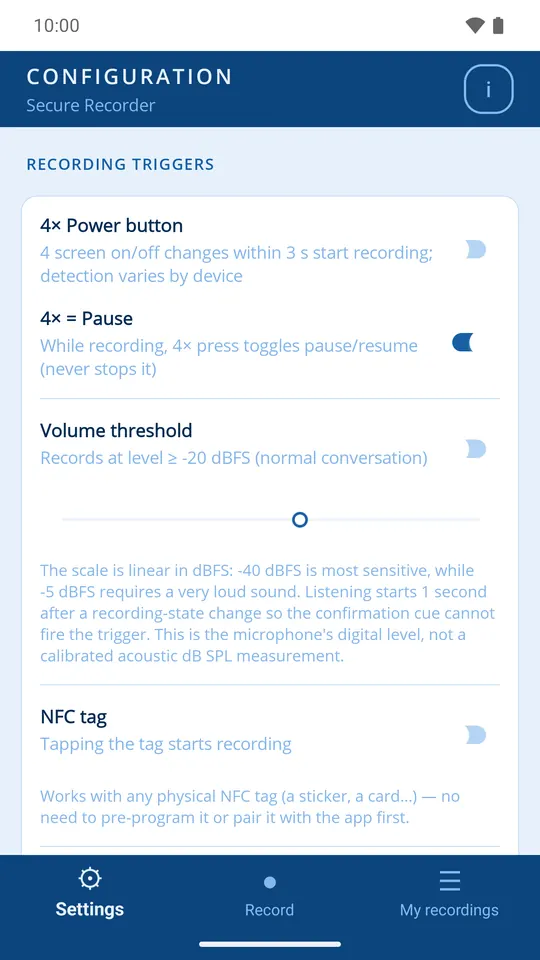
Hands-free triggers In the app, not shown in demo Start recording with a spoken phrase (recognised on the device), a sound-level threshold, an NFC tag or four presses of the power button. Spoken phrases can also pause or stop.

NFC hardware for NFC triggers; a downloaded offline speech model for phrases.

Behaviour depends on the device, the lock screen and Android background restrictions.

System audio capture In the app, not shown in demo Records audio played by other apps, after you confirm Android's screen-capture dialog.

Android 10 or newer; confirmation for every session.

Apps can block capture of their audio; protected content and many call apps are not captured.

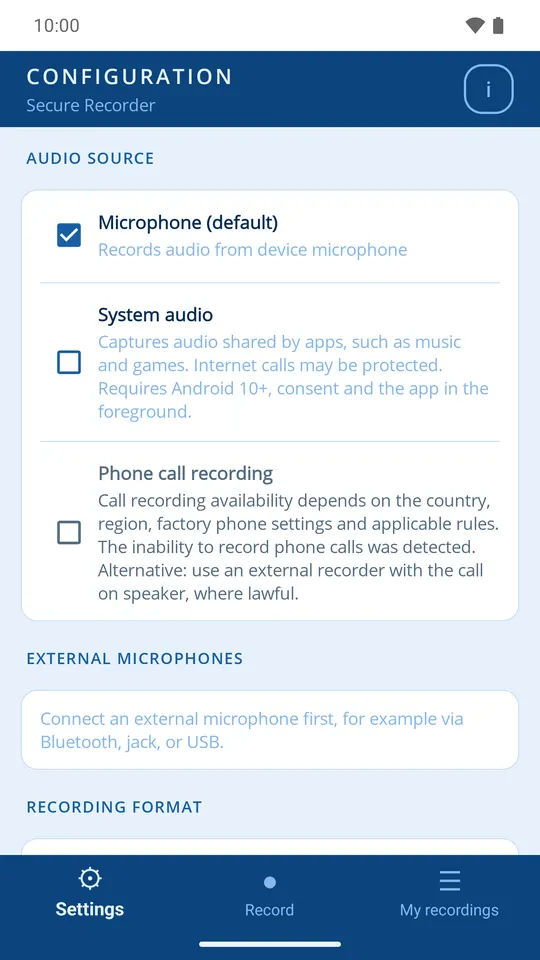
External microphones (USB, jack, Bluetooth) In the app, not shown in demo Connected inputs reported by Android are listed per device. A USB or wired microphone can replace the built-in microphone (“Alternative”) or record an extra, separate file in the same session (“Additional”). Bluetooth headsets can only be “Additional”.

A microphone that Android recognises as an audio input (USB audio class, wired headset or Bluetooth headset).

Not yet verified with real USB hardware for this page. Simultaneous capture from several inputs depends on the phone's audio hardware and is not guaranteed. Bluetooth uses the narrow-band call link (16 kHz).

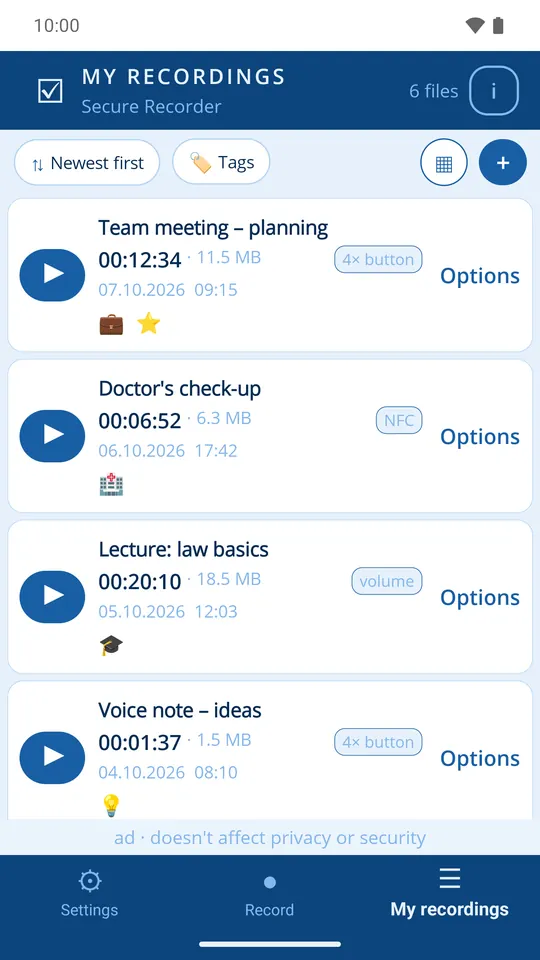
Library: tags, filters, sorting Shown in demo Twelve built-in tags (e.g. Work, Important, Education), filtering by up to five tags, six sort orders, list or grid view, and import of existing audio files from the phone.

No free-text search and no folders; you cannot create your own tags.

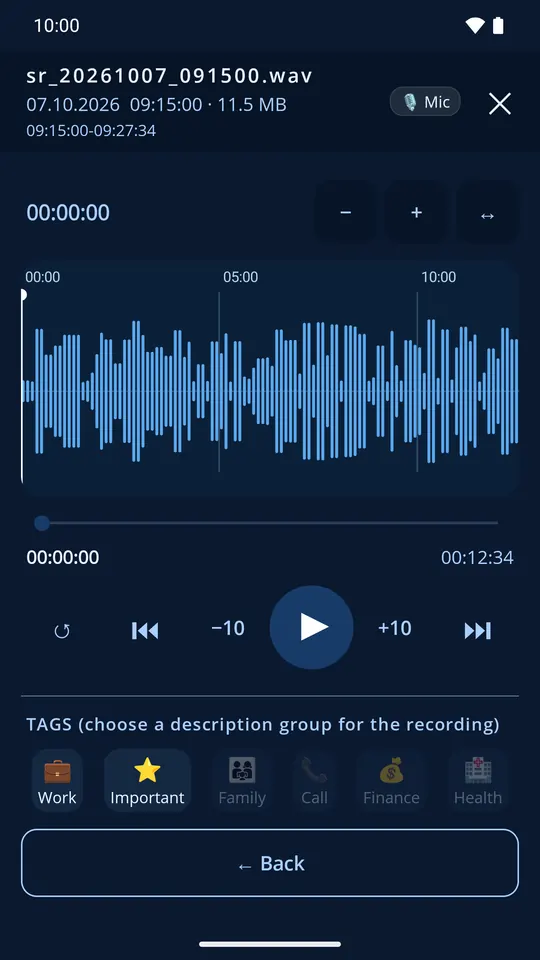
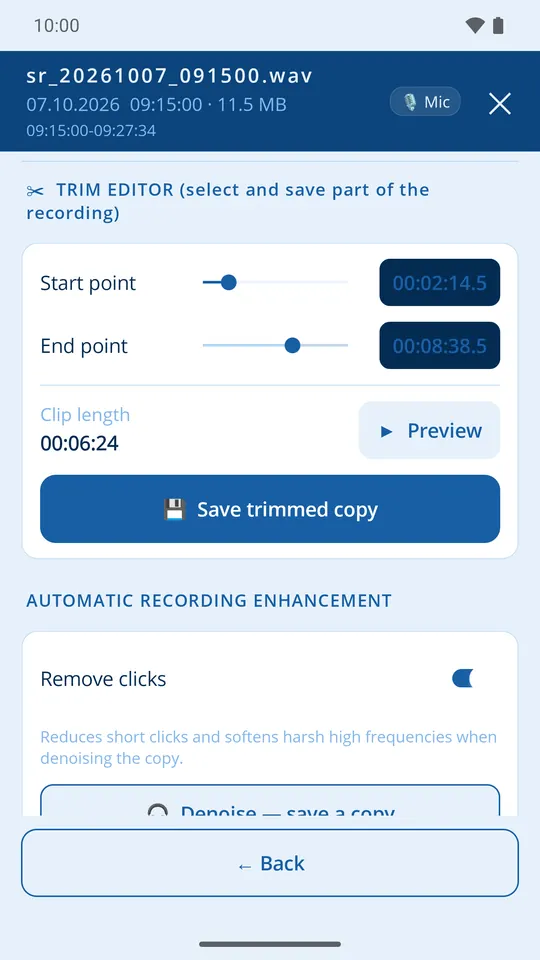
Player, waveform and trimming Shown in demo Zoomable waveform, 10-second skips and a trim editor. Trimming saves a new copy in the library; the original stays unchanged.
Denoised copy In the app, not shown in demo Creates a noise-reduced copy in the background from the player. The original recording is kept as captured.
On-device transcription In the app, not shown in demo Whisper (Small, Medium, Large-v3 Turbo) turns a recording or a selected fragment into text on the phone; the audio is not sent to a transcription server.

The model must be downloaded first (internet required for the download).

Speed and accuracy depend on the phone, the model and the recording quality.

Share and export Shown in demo Select one or many recordings and share them through any Android app, save them to Downloads, or queue them for your cloud. Export keeps the original format or converts to WAV.

Shared and exported copies are outside the app's control and are not encrypted by it.

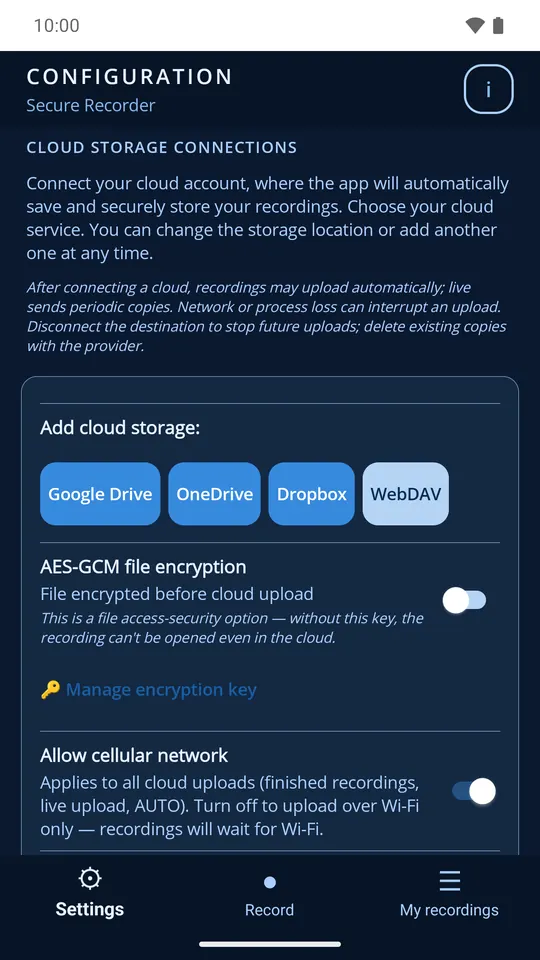
Upload to your own cloud In the app, not shown in demo Google Drive, OneDrive, Dropbox or a WebDAV server (HTTPS only). Finished recordings are uploaded automatically with up to three retries. Uploads over mobile data can be switched off.

Your own account with the provider and an internet connection.

The upload queue lives in the running app; an interrupted upload may need to be started again. Disconnecting an account removes the sign-in from the phone, not your cloud files.

Live copies while recording In the app, not shown in demo Optional (off by default): while you record, playable blocks are sent to your cloud periodically, so part of a recording survives if the phone is lost mid-session.

A connected cloud destination and a working connection during recording.

Periodic copies, not a continuous stream: audio recorded after the last successful block is lost with the phone.

AES-256-GCM encryption before upload In the app, not shown in demo Optional (off by default): final files and live/AUTO copies are encrypted on the phone before they reach the cloud. You can export and import the key.

Local recordings, temporary files, transcripts and exports are not encrypted. Without the same key the cloud copies cannot be decrypted.

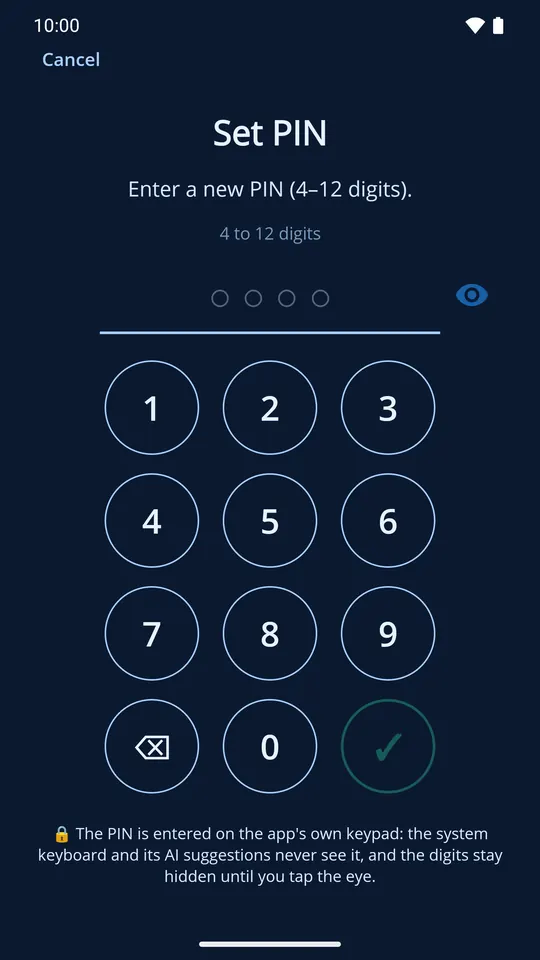
PIN lock for the app Shown in demo An in-app keypad PIN protects access to the interface, optionally again after the app has been minimised.

The PIN locks the interface only; it does not encrypt files on the phone.

Local emergency copy In the app, not shown in demo On by default: the active recording is copied periodically to the public Recordings/SecureRecorder folder so it can be recovered after a crash.

The copy is unencrypted and readable by other apps with storage access; it does not protect against loss of the phone.

Phone call recording Not available Not offered as a general feature. Android restricts call audio for third-party apps; the app points to the phone's built-in call recorder where one exists.
Manual merging or mixing of recordings Not available Separate recordings cannot be joined or mixed by hand. Parallel inputs are saved as separate files; only AUTO “Save last” joins its own buffer segments.

Limits to know

  • If the phone is lost, only copies that already reached your cloud can be recovered. Nothing that was not uploaded can be restored.
  • The PIN protects the interface; it is not file encryption. Encryption applies only to cloud copies, and only when you enable it.
  • Background recording, triggers and uploads depend on the manufacturer's battery management and Android restrictions.
  • USB, jack and Bluetooth microphones work only if Android exposes them as audio inputs; recording several inputs at once is not guaranteed.
  • Phone calls are not recorded as a general feature, and many apps block capture of their audio.
  • The app shows ads and asks for advertising consent where required.

Screens from the app

Real screens from build 1.1.8 on an Android emulator, with synthetic demo recordings and no personal data. Screens and videos show build 1.1.8; Google Play currently offers version 1.2.1. The differences are minor: recording names, a share button in settings, the PIN screen and waveform loading.

  • Library list with recording names, durations, sizes, triggers and tags
    Library with tags, filters and sorting.
  • Player with a zoomable waveform in dark theme
    Player with waveform.
  • Trim editor with start and end sliders
    Trimming saves a new copy; the original stays.
  • Audio source settings: microphone, system audio and external microphones
    Audio sources, including external microphones.
  • Trigger settings: power button, sound level, NFC and voice phrases
    Hands-free triggers.
  • Cloud settings with Google Drive, OneDrive, Dropbox, WebDAV and encryption before upload
    Your own cloud, optional encryption.
  • PIN setup with the in-app keypad in dark theme
    PIN lock for the interface.

Answers

How do I record with a USB microphone?

Connect the microphone, open Settings → External microphones and choose “Alternative” to replace the built-in microphone or “Additional” to record it as a separate file next to the built-in one. If the microphone is not listed, Android does not expose it as an input on that phone. Simultaneous recording from several microphones depends on the phone and has not been verified on real hardware for this page.

Can I join or mix recordings?

Not by hand. Pausing keeps one recording in one file, and AUTO mode's “Save last” joins its buffered segments into one file per source. Parallel microphones are saved as separate files; there is no mixer.

How do I organise recordings?

Give each recording a name and up to several of the twelve built-in tags, then filter the library by up to five tags and sort by date, name or duration. There is no free-text search and no folders.

How do copies get to the cloud?

Connect Google Drive, OneDrive, Dropbox or an HTTPS WebDAV server in Settings. Finished recordings upload automatically; you can also queue selected recordings from the library. Optional live copies send playable blocks while you record, and optional AES-256-GCM encryption protects cloud copies with a key you keep.

What is protected if my phone is lost?

Only what already reached your cloud. With live copies enabled that can include most of a recording in progress, up to the last block that was sent. Files that were never uploaded cannot be recovered. The PIN stops someone from opening the app's interface but does not encrypt files stored on the phone.

Version on Google Play: 1.2.1 · Information checked:

Get it on Google Play